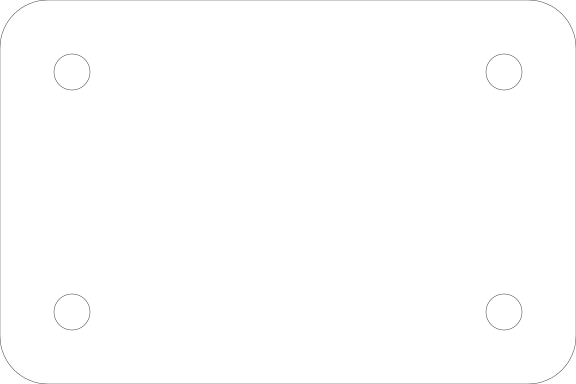
How do I convert a DXF to an SVG for my laser?
Updated Nov 11, 2026
Short answer: Read the DXF with the right units, join its loose lines into shapes, and save an SVG sized in millimeters.
Updated Nov 11, 2026
Short answer: Read the DXF with the right units, join its loose lines into shapes, and save an SVG sized in millimeters.
Drop your SVG or DXF file here
or
Free. Nothing is uploaded: the check runs on your own computer.
Marks: open ends cut twice dots and tiny bits text and pictures
Changing these checks the file again.
DXF files from CAD programs and download sites often have loose lines instead of closed shapes, no stated units, and extras like dimensions. Converting with a check fixes all three at once.
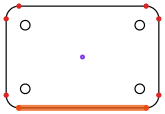
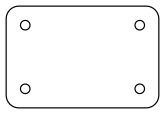
Download: before (DXF) · after (SVG)
LightBurn and xTool software can. But DXFs often come in at the wrong size or as hundreds of loose lines, and the Glowforge app works with SVG. A checked SVG in millimeters avoids those problems.
They are left out, because they are not cut lines. The checker tells you how many it left out.
The checker warns you and shows the size it assumed. If it looks 25.4 times off, press "Grow 25.4×" or "Shrink 25.4×" before downloading.